
How to get WooCommerce System Status
Learn how to generate and share the WooCommerce System Status report to speed up troubleshooting with Dreamfox Media support.
Search portal content
Search portal content
Learn how to generate and share the WooCommerce System Status report to speed up troubleshooting with Dreamfox Media support.
Learn how to generate and share the WooCommerce System Status report to speed up troubleshooting with Dreamfox Media support.
Here is your cleaned, improved, and “Dreamfox-style” KB article — clearer, more professional, and a bit smoother to read (without sounding like a robot 🤖):
The WooCommerce System Status provides a complete overview of your store’s technical environment.
It includes key information such as:
WordPress version
WooCommerce version
PHP version & memory limits
Installed plugins
Active theme
Server configuration
👉 Think of it as a full diagnostic snapshot of your webshop.
The System Status is essential when troubleshooting issues.
It helps developers and support teams to:
Quickly identify configuration problems
Detect plugin conflicts
Check server limitations (like memory or PHP version)
Diagnose compatibility issues
👉 In many cases, we can spot the issue within seconds just by reviewing this report.
💡 That’s why we always ask you to include it when contacting support.
Follow these steps:
Go to your WordPress dashboard
Navigate to: WooCommerce → Status
Click the button: “Get system report”
Copy the generated report
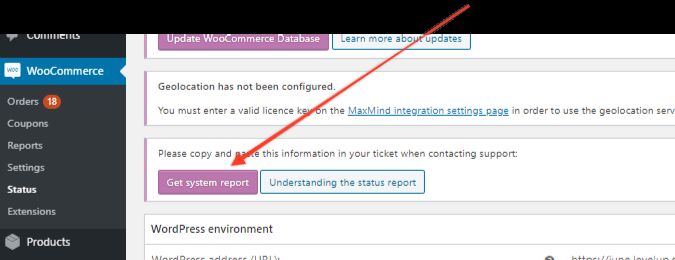
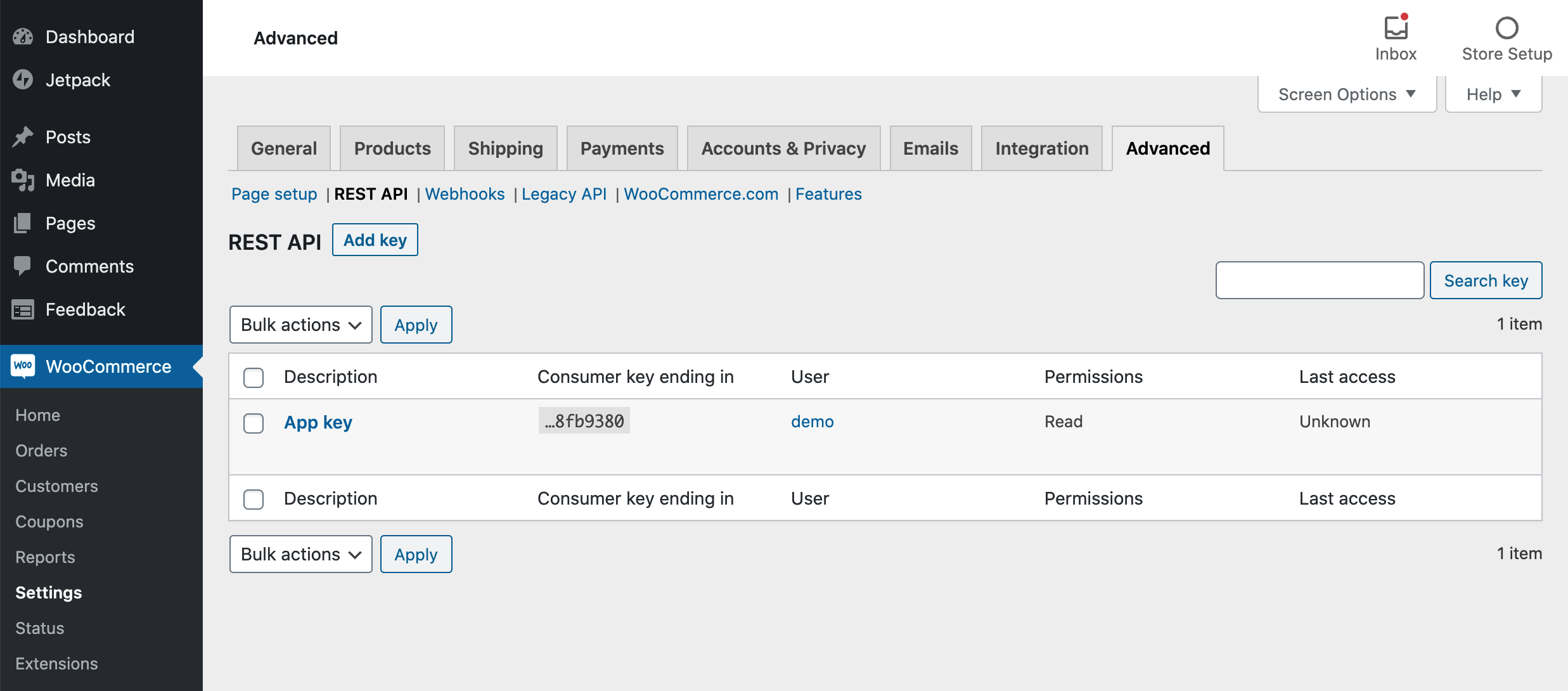
You have two options:
Copy the full report
Paste it directly into your support ticket
Save the report as a PDF file
Attach it to your ticket
👉 This keeps things cleaner and easier to read for our support team.
Before sending the report:
Make sure it’s complete (don’t trim it)
Avoid screenshots — text is easier to analyze
Include a short description of your issue
📊 System Status = full technical overview
🛠️ Found via WooCommerce → Status
📋 Click “Get system report”
📩 Always include it in support requests
If you want, I can also:
Add a 1-click “Download as PDF” flow (UX upgrade)
Or create a “How to read system status” guide (next-level support) 🚀